
How to Use GitHub: The Basics
How to Use GitHub: The Basics
This article guides you through using GitHub, the essential tool for developers. You will learn how to create an account, navigate the interface, and create your first repository. We will also cover commits, pull requests, and other essential features. GitHub will be your main workspace for coding, collaborating, and sharing your projects.
Getting Started
Once you have created an account, you will have an interface like this:
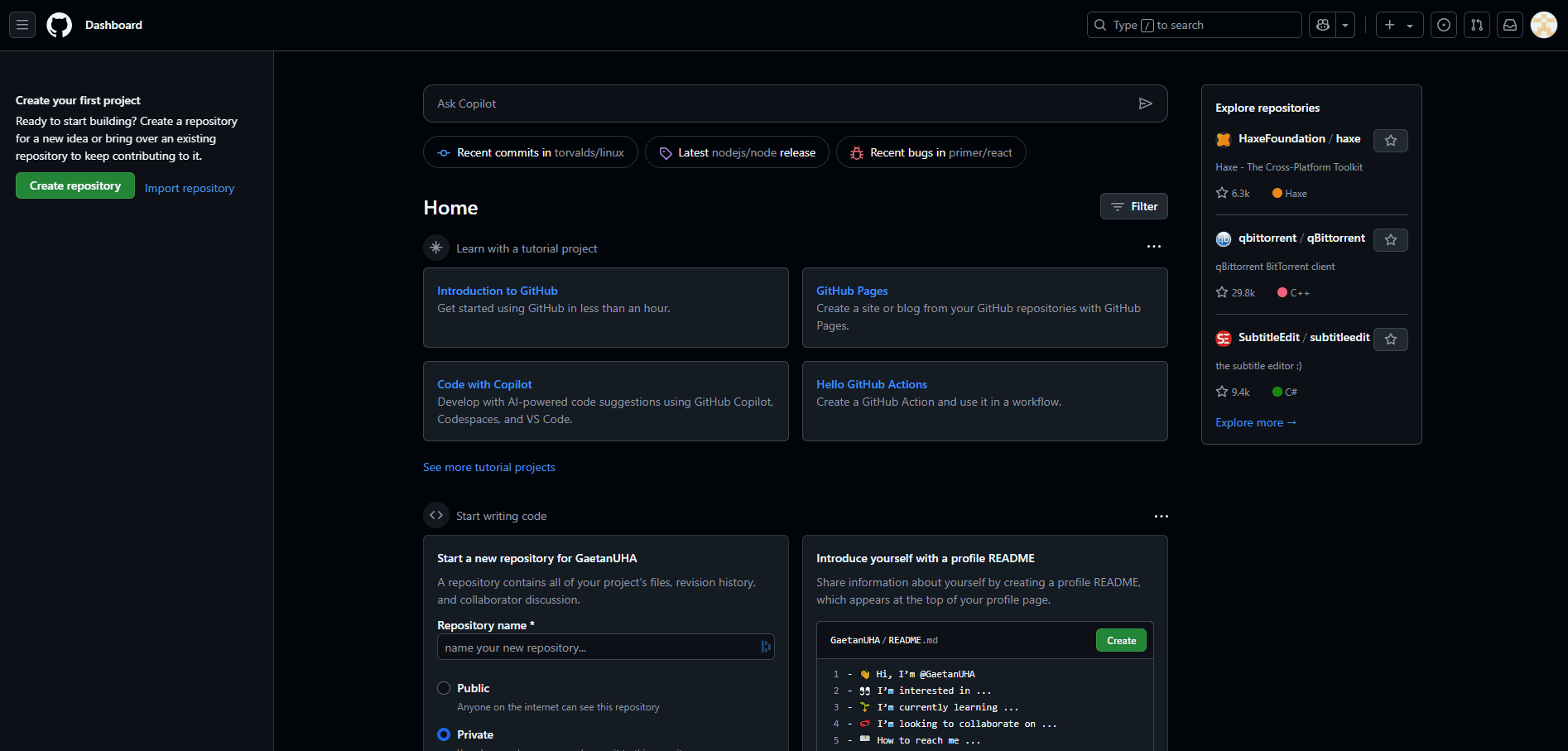
Well, this is your homepage, a news feed somewhat like Twitter, but rather focused on community activity (if someone has followed you, starred "liked" one of your repositories).
I said "repository", what is that? Well, it's in its exact name repository. This is where your code will be stored.
First Repository
To create a repository and start adding code files to it, nothing could be simpler: you need to click on the small Plus icon located at the top right of your screen.
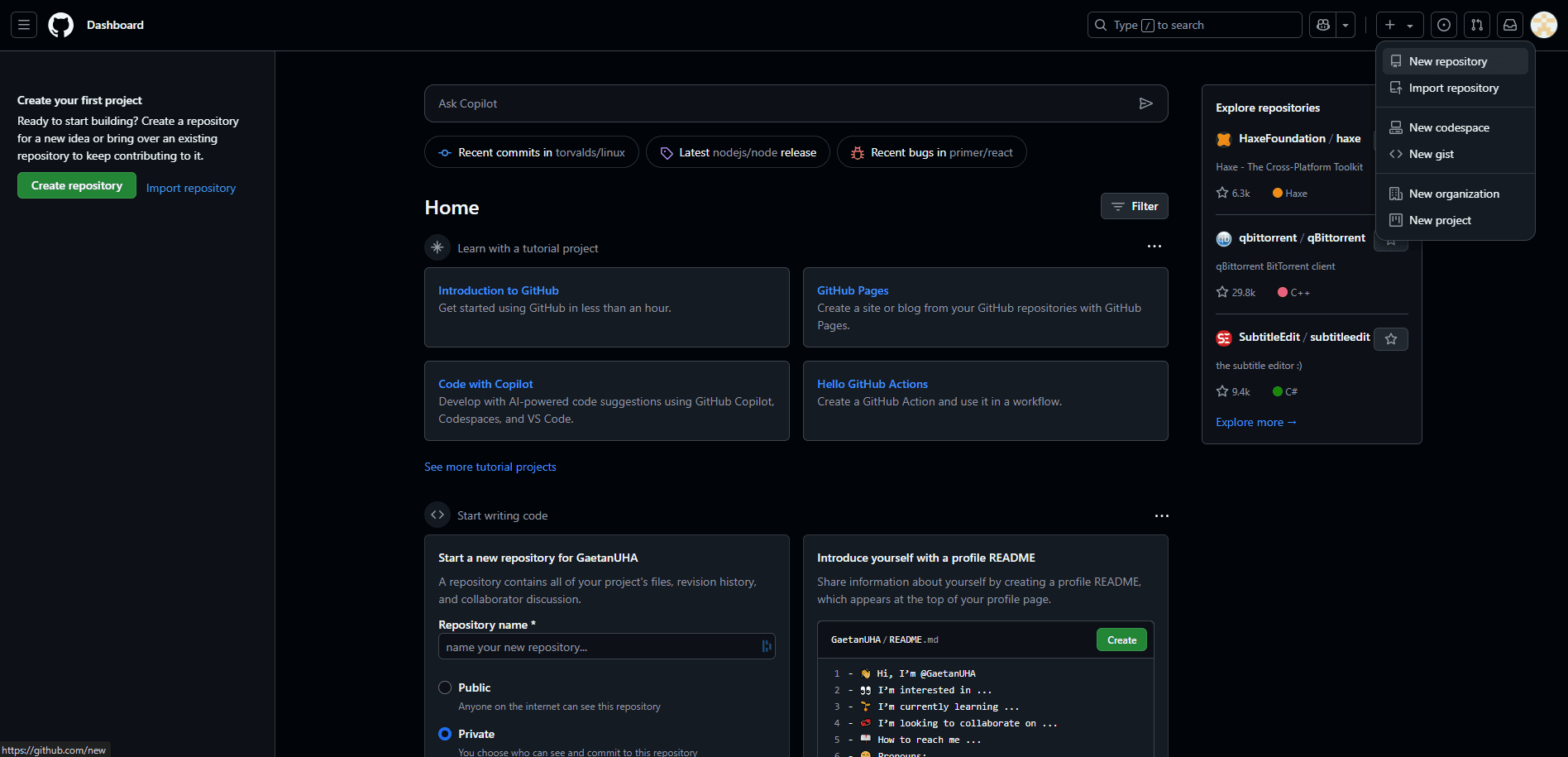
You will find several possible actions there:
- New repository
- Import repository
- New codespace
- New gist
- New organization
- New project
What we're interested in first is New repository. Click on this option and we'll come back to the others later.
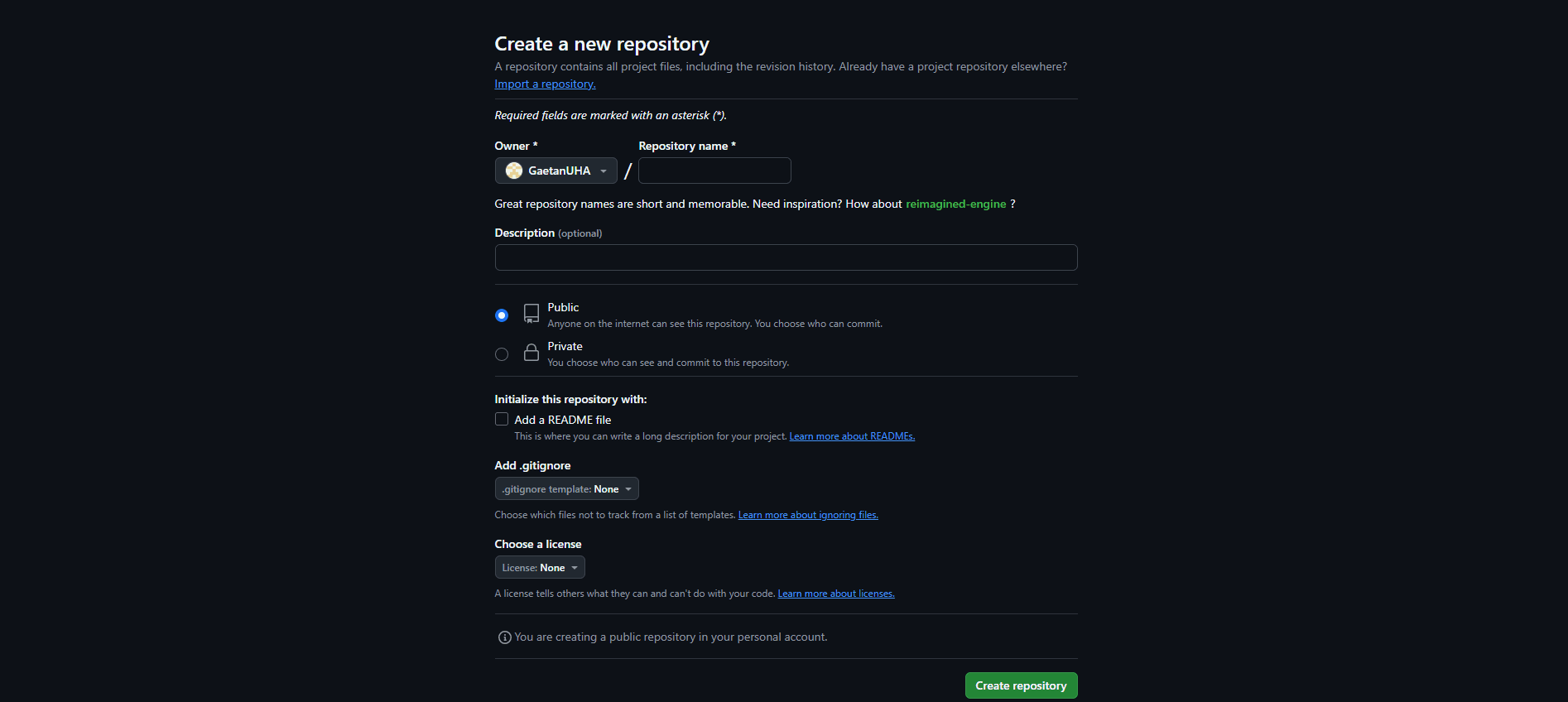
Once you arrive on this page, several fields will be displayed:
- The repository owner: Whether it's on your account or an organization you are in.
- The repository name: This is a unique name that cannot be reused (on the chosen account/organization).
- A description (optional): This is brief information that describes your repository.
- Visibility: Public or private. If you choose private, then only you or the members you have authorized will be able to access the repository. If John tries to access your private repository, then an error (404) will be displayed to him, giving no information about whether the repository exists or not.
- Initialize the project with a "Read me" file: As its option name indicates, this is a Markdown format file that will be created What is Markdown?
- Add a
.gitignore: This file allows you to specify the files and folders that Git should ignore. Once you publish code from your computer, files or folders added to the.gitignorewill be ignored and not published. We will come back to this later. - Choose a license: A license defines the terms of use for your code.
For now, we will create a public repository, with a starting file (readme) without a license and without a gitignore file.
Once created, you will find yourself in front of an interface like this:

The Different Tabs
In this interface, we find many elements. First of all, at the top, you will find a horizontal navigation with links:
- Code: The main tab of any GitHub repository. It displays the content of your repository, including files and folders. You can navigate through different directories, view source code, and access commit history.
The Code tab contains different elements:
- Pin: Displays if you are a maintainer or the maintainer of the repository. If you pin it, it will be featured on your profile as an example: "Look at my work".
- Unwatch / Watch: These options allow you to manage notifications about a repository's activities. By "watching" a repository, you receive notifications about all activities. By choosing "unwatch", you no longer receive these notifications.
- Fork: The "fork" is a feature that allows you to create a personal copy of a repository. This allows you to work on the project independently from the original. Changes can then be proposed to the original via a pull request.
- Star (Favorites): The "Star" button allows you to mark a repository as a favorite. It's a way to express your interest or appreciation for a project. Repositories you "star" appear in your favorites list on your GitHub profile.
- Issues: This tab allows you to track problems or tasks related to the project. Users can report bugs, suggest improvements, or ask questions. Each issue can be commented on and assigned to specific team members.
- Pull requests: Pull requests are requests to merge changes from one branch into another, usually from the development branch to the main branch. They allow code review, discussion of changes, and ensuring that modifications are approved before being integrated.
- Actions: GitHub Actions allows you to automate development workflows directly in your repository. You can configure workflows to compile code, run tests, or deploy applications.
- Projects: This tab allows you to manage projects using Kanban boards. You can create cards for tasks, organize them into columns, and track the progress of different parts of the project.
- Wiki: The wiki is a space where you can document your project. It is often used to provide usage guides, FAQs, or technical information about the project.
- Security: This tab groups GitHub's security tools, such as vulnerability detection, dependency composition analysis, and security alerts.
- Insights: Provides analysis and statistics about the repository, including contributors, commits, and project activity.
- Settings: This tab allows you to configure various repository settings, such as collaborators, protected branches, webhooks, and security settings.
First Commits
For the example of this article, we will go up to the step of deploying a static site (HTML / CSS) directly from GitHub.
First, we will send files to our repository. By sending files, this will automatically create a commit.
- What is a commit? A commit is a bit like a snapshot of your project at a specific moment. Imagine you are working on a project, and at a certain point, you want to save the current state of your code. Well, that's where the commit comes in!
Sending and Creating Files
To send files, nothing is simpler than drag-and-drop. For this, we will click on Add file.
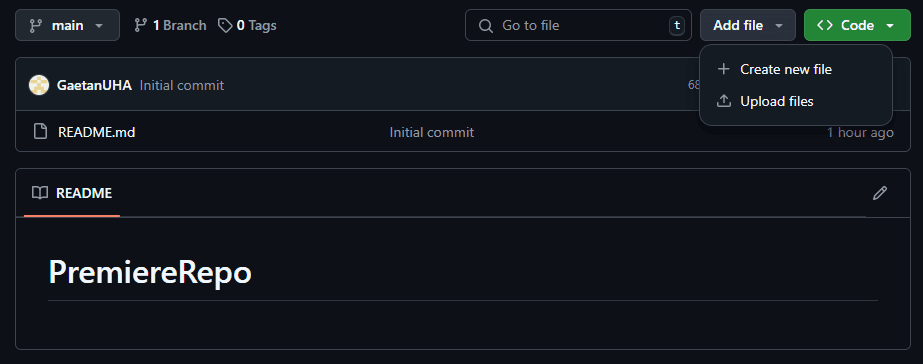
This gives us the choice to create or send files. For the example, we will send files for now. We will see creation later.
Sending Files
What's great about GitHub is that it allows drag-and-drop, which means you can drop files as well as folders, and it will take care of creating the paths for you.
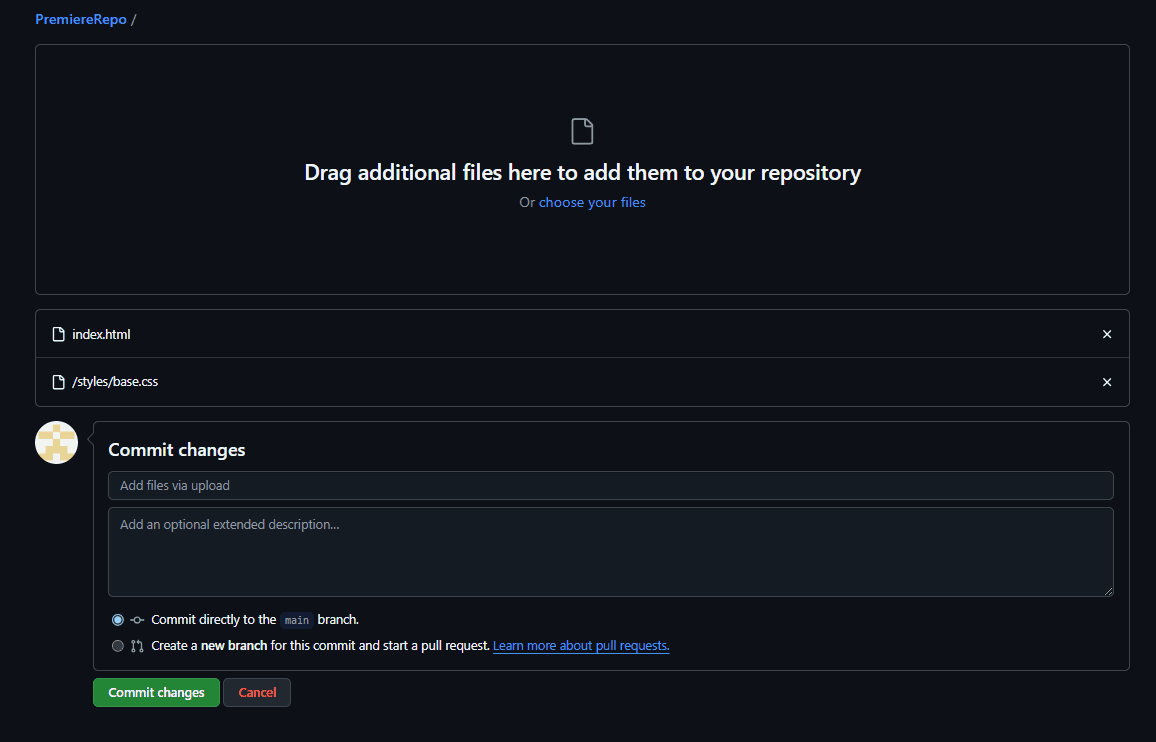
Now, we will create the commit. By default, the title is "Add files via upload". In this case, you can put a custom title there to better find your way if you need to come back in 3-4 months, if needed, to retrieve lost code. (You can also add a description to your commit).
Then, the branch selection. For now, we will leave the default so main and we will come back to this subject later.
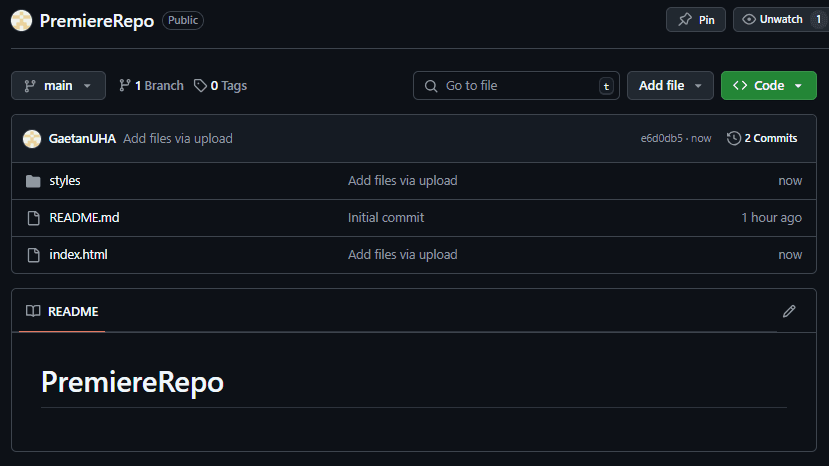
And once filled in, simply click on "Commit changes", and you're done, your files are on GitHub.
Creating Files
Now, we will see how to create a file. We click again on "Add file" then on "Create new file".
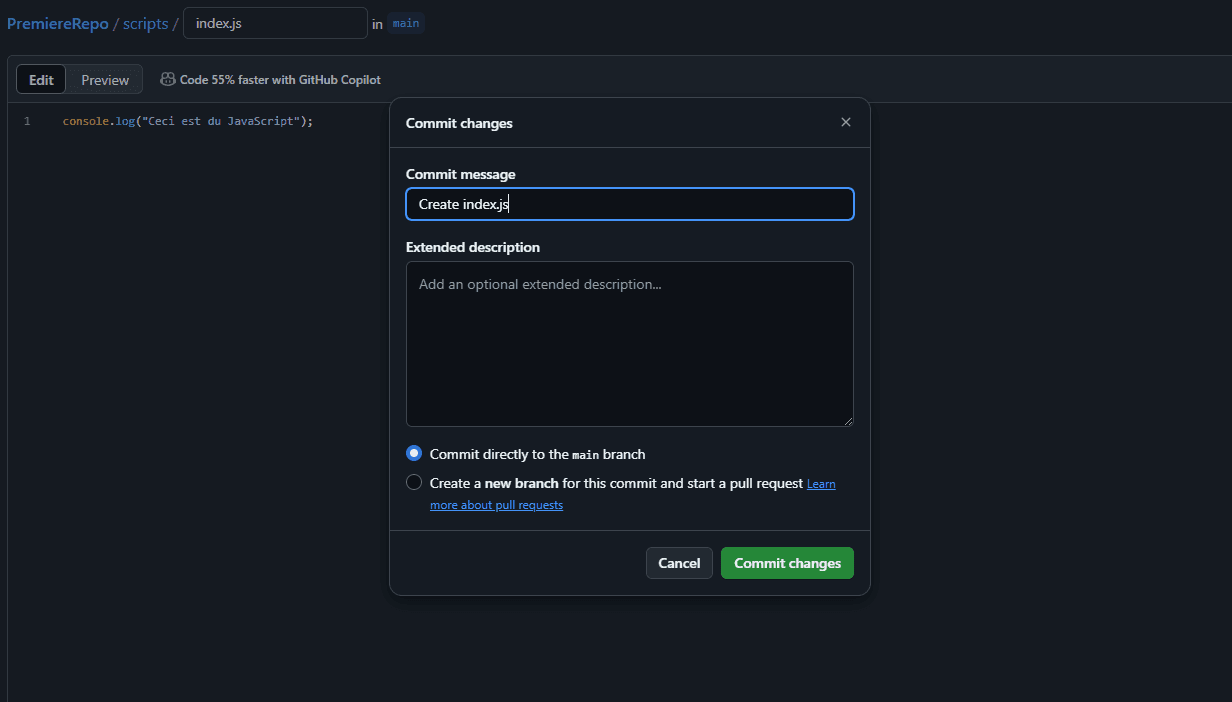
We will find ourselves with an interface on which we will have a green button for the commit, a file explorer on the left and a field to write the file name.
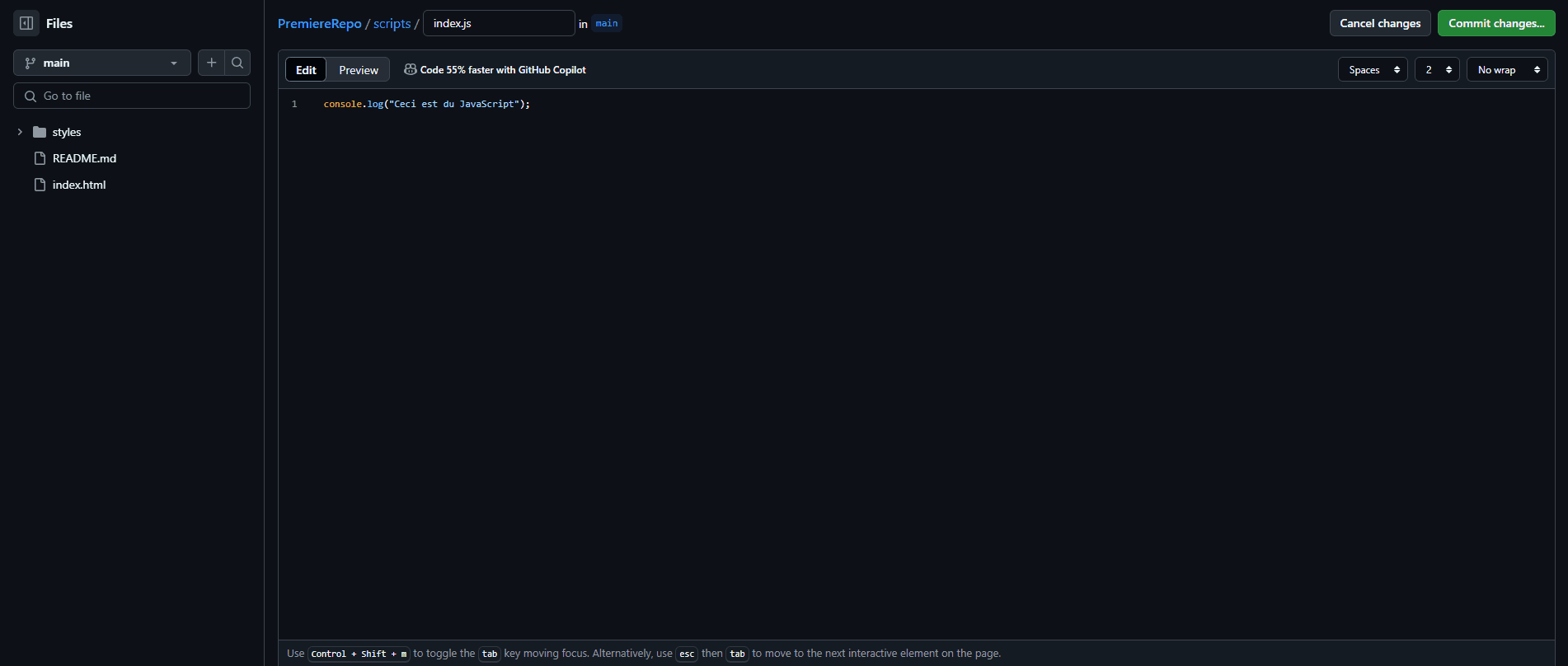
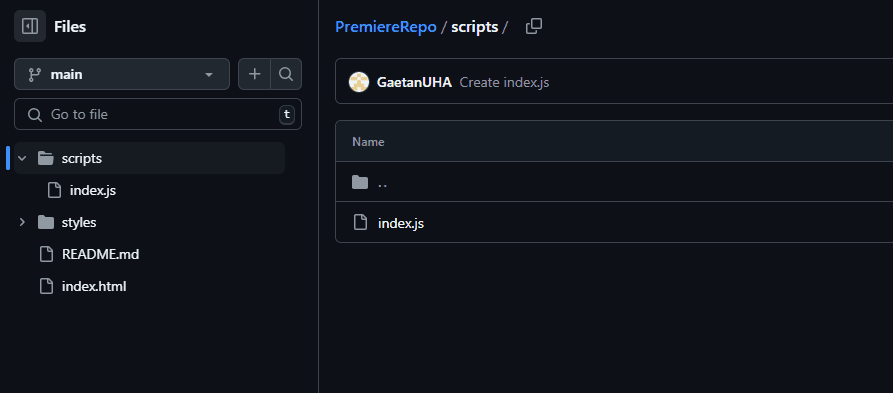
This field can also create folders, just by writing / this will create a folder. So, for example: /scripts. Once we send the commit, a folder will be created, and the last element of the field will be the file name. In my example, it will be index.js.
Once we have finished writing our file, we will again click on the button to send our changes (commit). This time, a form will appear but with the same prerequisites: a title, a description that is still optional as well as a choice of branches.
The default title for file creation will always be "Create [filename].[file_extension]".
And here is our file inside the folder we created.
Deleting Files
To delete a file, nothing is simpler than a button representing a trash can. To do this, click on the file you want to delete to get its content, and take a look at the top right.
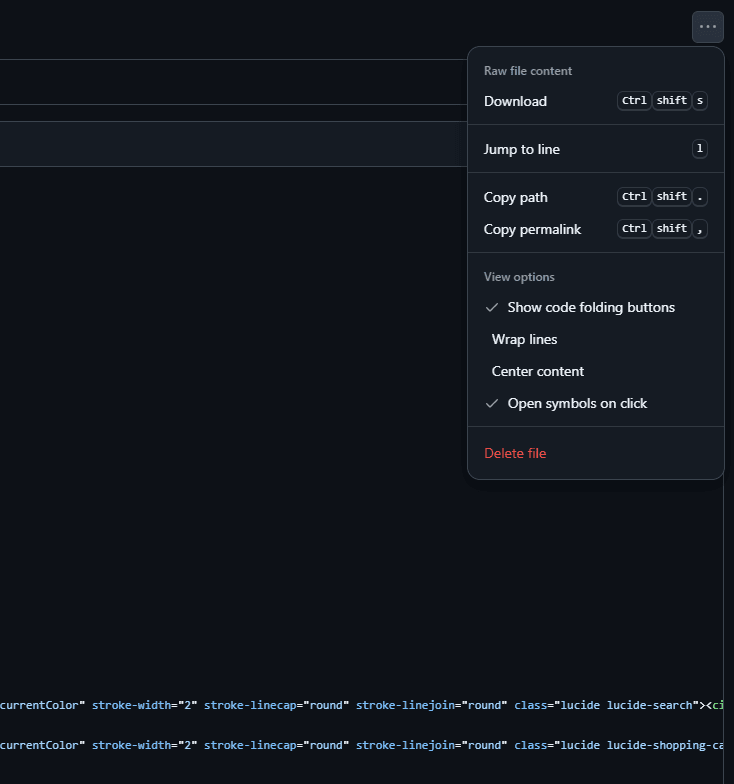
Here are options available to you, such as downloading this file, going to the line, copying access links and also accessibility/view options.
And what interests us most, a button to delete the file. Click on it and once again, we will be asked to confirm while filling in a commit. You should get used to it ;)
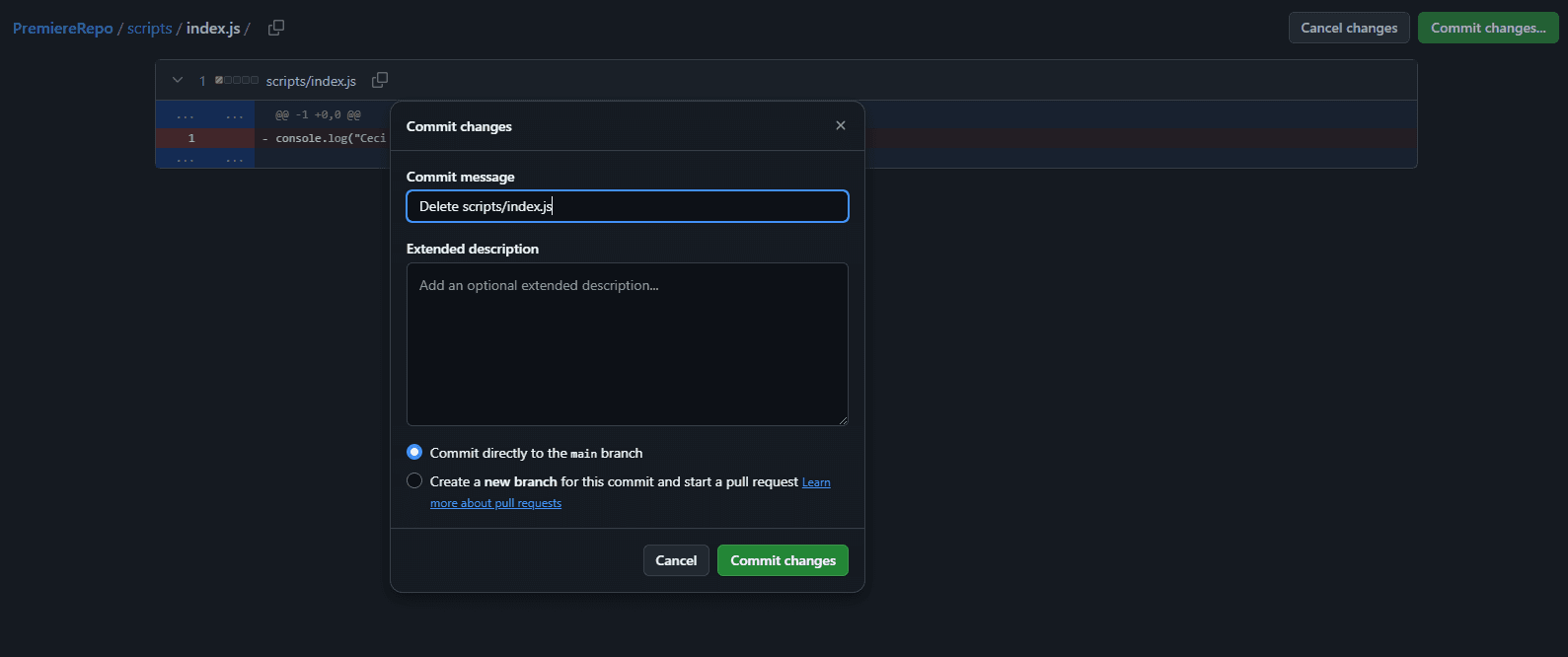
Small specificity: when you delete a file that is in a folder, if it ends up empty, then it disappears too.
Editing Files
For editing files, it's pretty much the same as deletion, except this time it will be in the simple icons.

Small specificity that we will come back to later: by clicking on the icon next to it, it will offer you other editing methods.
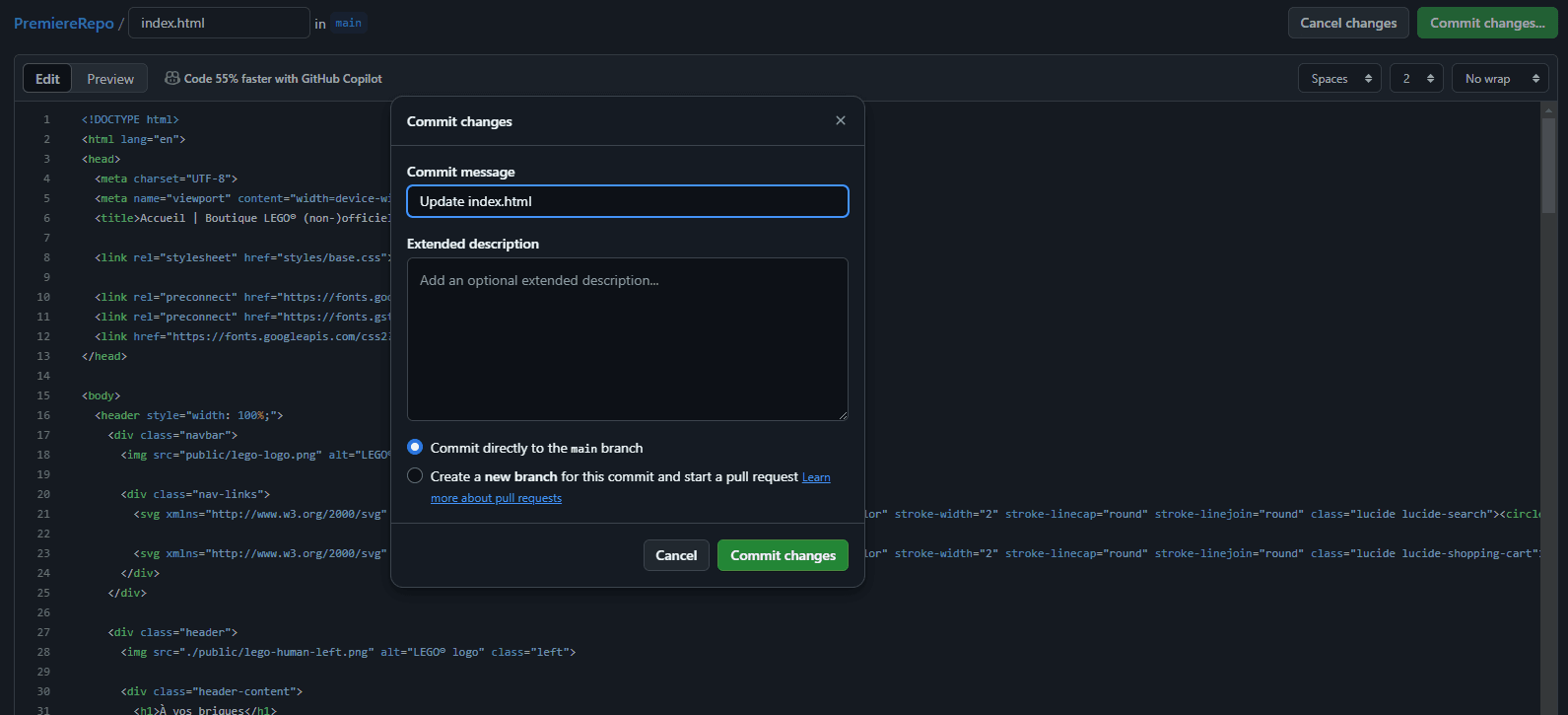
Once clicked, this will change the interface to one that allows editing. [...] Once your file is edited, then the button that allows committing changes will activate.
Branches
Branches are a fundamental element of GitHub, allowing developers to work on different versions of a project simultaneously. Here is a guide to understanding and using branches effectively, directly from the GitHub web interface:
What is a Branch?
A branch is an independent line of development within a repository. By default, each GitHub repository starts with a main branch called main. Branches allow you to develop features, fix bugs, or experiment without affecting the main code.
Creating a New Branch
To create a new branch on GitHub, follow these simple steps:
- Access your repository:
- Go to your repository's main page on GitHub.
- Open the branches menu:
- Click on the branches dropdown menu, usually located above the file list.
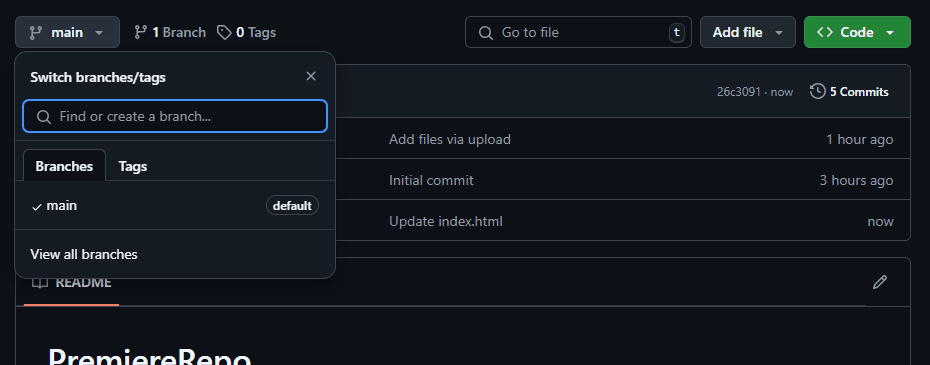
- Create a new branch:
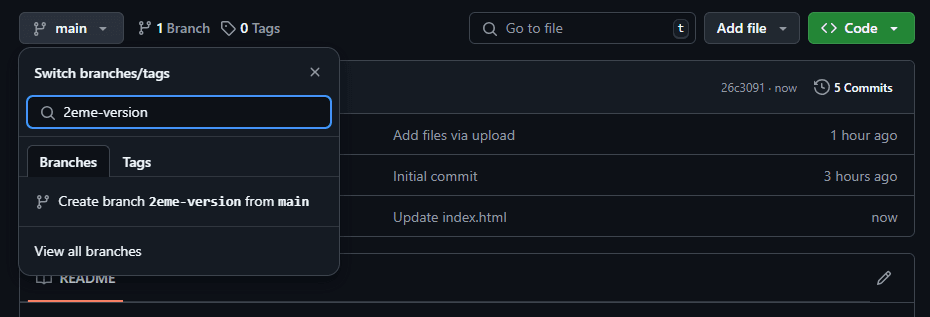
- Enter the name of the new branch in the field provided for this purpose.
- Press Enter or click on "Create branch" to finalize.
Working with Branches
Once you have created a branch, you can make changes to it independently of other branches. Here's how to proceed:
- Switch between branches:
- Use the same dropdown menu to select and switch between the different branches of your repository. (By default after creation you are redirected there)
- Merge branches:
- To integrate changes from one branch into another, you can create a pull request.
Pull Requests
Pull requests (PR) are essential for collaborating on GitHub. They allow you to propose changes from one branch to another, usually from the development branch to the main branch. Here's how to create a pull request:
- On GitHub:
- Go to your repository page.
- Click on the "Pull requests" tab.
- Click on "New pull request".
- Select the source branch and the target branch, then click on "Create pull request".
- Review and merge:
- Team members can review the code, leave comments, and request changes.
- Once approved, the pull request can be merged into the target branch.
Best Practices
- Name branches descriptively: Use names that describe the purpose of the branch (for example,
feature/new-feature). - Keep branches up to date: Regularly merge changes from the main branch into your feature branches to avoid conflicts.
- Use branches for each task: Create a new branch for each feature or bug fix to isolate changes.
Branches are a powerful tool for managing collaborative development and maintaining clean and organized code. By using them effectively, you can improve the quality of your code and facilitate collaboration within your team.
CLI
The Git CLI (Command Line Interface) is an essential tool for developers who want to manage their source code repositories directly from the terminal. Git is a version control system that allows you to track changes made to files over time. Here is a guide to understanding and using the Git CLI:
What is Git?
Git is version management software that allows you to track changes made to a set of files, usually source code. It is particularly useful for collaboration on software projects, as it allows multiple developers to work on the same code without interfering with each other.
Installing Git
To use Git, you must first install it on your machine. Here's how to proceed:
- Download and installation:
- Go to the official Git website and download the installer for your operating system.
- Follow the installation instructions.
- Initial configuration:
- Once installed, configure your username and email address with the following commands: ```bash git config --global user.name "Your Name" git config --global user.email "your.email@example.com" ```
Basic Git Commands
Here are some basic commands to get started with Git:
- Initialize a repository:
- To create a new Git repository in an existing directory: ```bash git init ```
- Clone an existing repository:
- To copy a remote repository to your local machine: ```bash git clone repository_url ```
- Add files to the index:
- To add specific files to the index (staging area) before committing them: ```bash git add filename ```
- To add all modified files: ```bash git add . ```
- Commit changes:
- To record changes in the local repository: ```bash git commit -m "Commit message" ```
- Display repository status:
- To see uncommitted changes and untracked files: ```bash git status ```
- Push changes to a remote repository:
- To send your commits to a remote repository: ```bash git push origin branch_name ```
- Pull changes from a remote repository:
- To retrieve changes from a remote repository: ```bash git pull origin branch_name ```
Using Branches with the CLI
Branches are essential for working on different features or fixes without affecting the main code. Here are some commands to manage branches:
- Create a new branch: ```bash git branch branch_name ```
- Switch to a branch: ```bash git checkout branch_name ```
- Create and switch to a new branch: ```bash git checkout -b branch_name ```
- Merge a branch into the current branch: ```bash git merge branch_name ```
Using the .gitignore File
The .gitignore file allows you to specify the files and folders that Git should ignore. Here's how to use it:
- Create a
.gitignorefile:
- Create a file named
.gitignorein your project directory.
- Add files or folders to ignore:
-
Add the paths of the files or folders you want to ignore, one per line. For example: ```bash
To ignore all files with a specific extension
*.tmp
To ignore specific files
config.local.json
And to ignore folders (parents) and their files (children)
node_modules/ ```
Git is a powerful tool for version management and collaboration on software projects. By mastering the Git CLI, you can improve your workflow and collaborate effectively with other developers.
Git in Visual Studio Code
Visual Studio Code (VS Code) is a popular source code editor that offers native integration with Git, making it easy to manage repositories directly from the editor interface.
Why Use Git in VS Code?
- Intuitive user interface: VS Code offers a graphical interface for Git operations, which is particularly useful for beginners or those who prefer to avoid the command line.
- Increased productivity: You can perform Git operations without leaving your development environment.
- Complete integration: VS Code allows you to view commit history, manage branches, and resolve merge conflicts directly in the editor.
Configuring Git in VS Code
- Install VS Code:
- Download and install Visual Studio Code from the official website: Visual Studio Code.
- Open a project:
- Open an existing project or create a new one in VS Code.
- Initialize Git:
- If your project is not yet a Git repository, you can initialize it by clicking on the sidebar icon that looks like a branch (or using the shortcut
Ctrl+Shift+G), then selecting "Initialize Repository".
Using Git Features in VS Code
- View file status:
- The Git sidebar icon displays the status of files in your repository. You can see which files have been modified, added, or deleted.
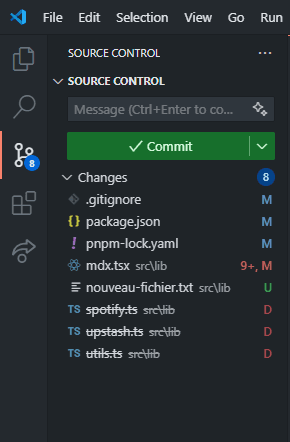
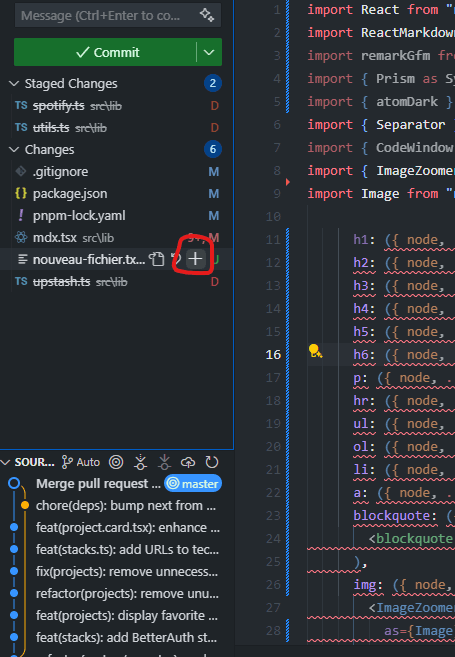
- Add files to the index:
- Click on the
+sign next to modified files to add them to the index (staging area).
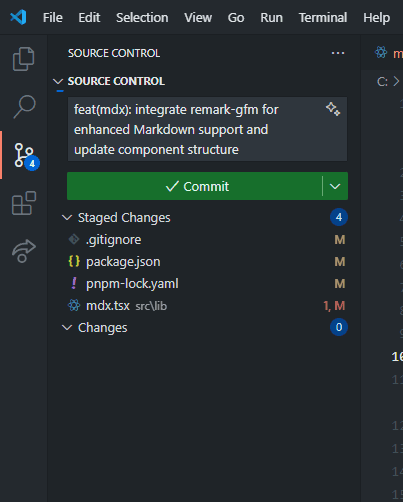
- Commit changes:
- Enter a commit message in the text area provided for this purpose and click on the checkmark icon to commit the changes.
- Push and pull changes:
To synchronize your changes with a remote repository in Visual Studio Code, you have two main options:
-
Use the synchronization icon:
- At the bottom of the VS Code window, you will see an icon with circular arrows. Click on it to synchronize your changes.
- This will send your local changes to the remote repository and retrieve the latest changes from the repository.
-
Use "Sync Changes":
- In the "Source Control" section on the left side of VS Code, you will see a "Sync Changes" button.
- Click on this button to send your local changes to the remote repository and get the latest changes from the repository in one action.
These two methods allow you to keep your project up to date and share your changes with other collaborators.
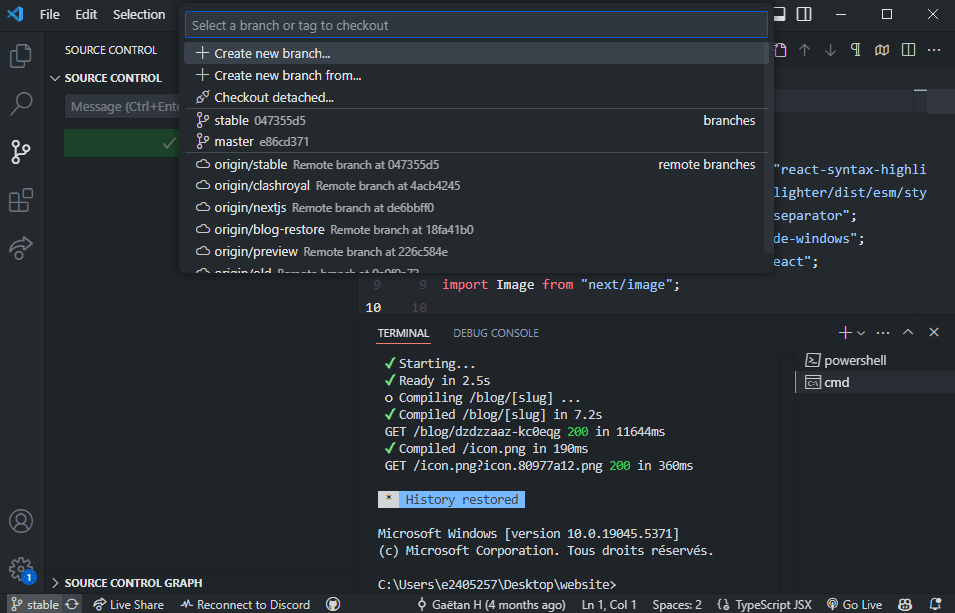
- Manage branches:
- You can create new branches, switch between existing branches, and merge branches directly from the VS Code interface.
- To create a new branch, click on the branch icon in the lower left corner and select "Create New Branch".
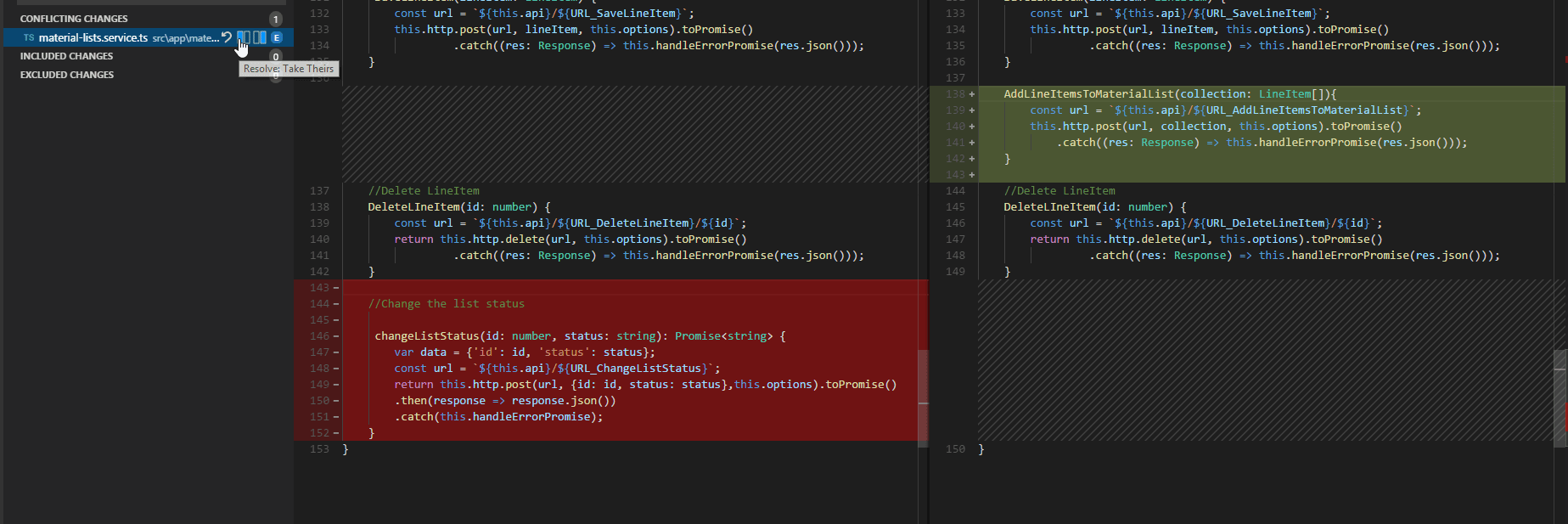
- Resolve merge conflicts:
- VS Code makes resolving merge conflicts easier by displaying differences directly in the editor and allowing you to choose which changes to keep.
Using the Integrated Terminal
Although VS Code offers a graphical interface for Git, you can also use the integrated terminal to run Git commands directly:
- Open the terminal:
- Use the shortcut
Ctrl+` (grave accent) to open the integrated terminal. - Run Git commands:
- You can run all standard Git commands directly in the VS Code integrated terminal.
Useful Extensions for Git
VS Code has many extensions that can enhance your experience with Git:
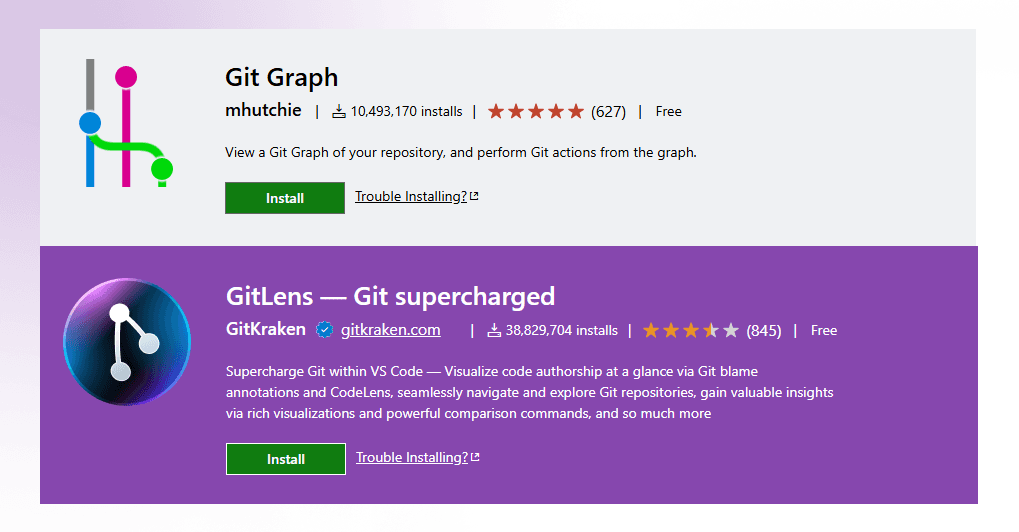
- GitLens: This extension offers advanced features to visualize commit history, see line authors, and much more.
- Git Graph: This extension displays a graph of commit history, making it easier to visualize branches and merges.
By using Git directly in Visual Studio Code, you can manage your repositories efficiently and intuitively, while staying in your preferred development environment.
Deploying a Static Site with GitHub Pages
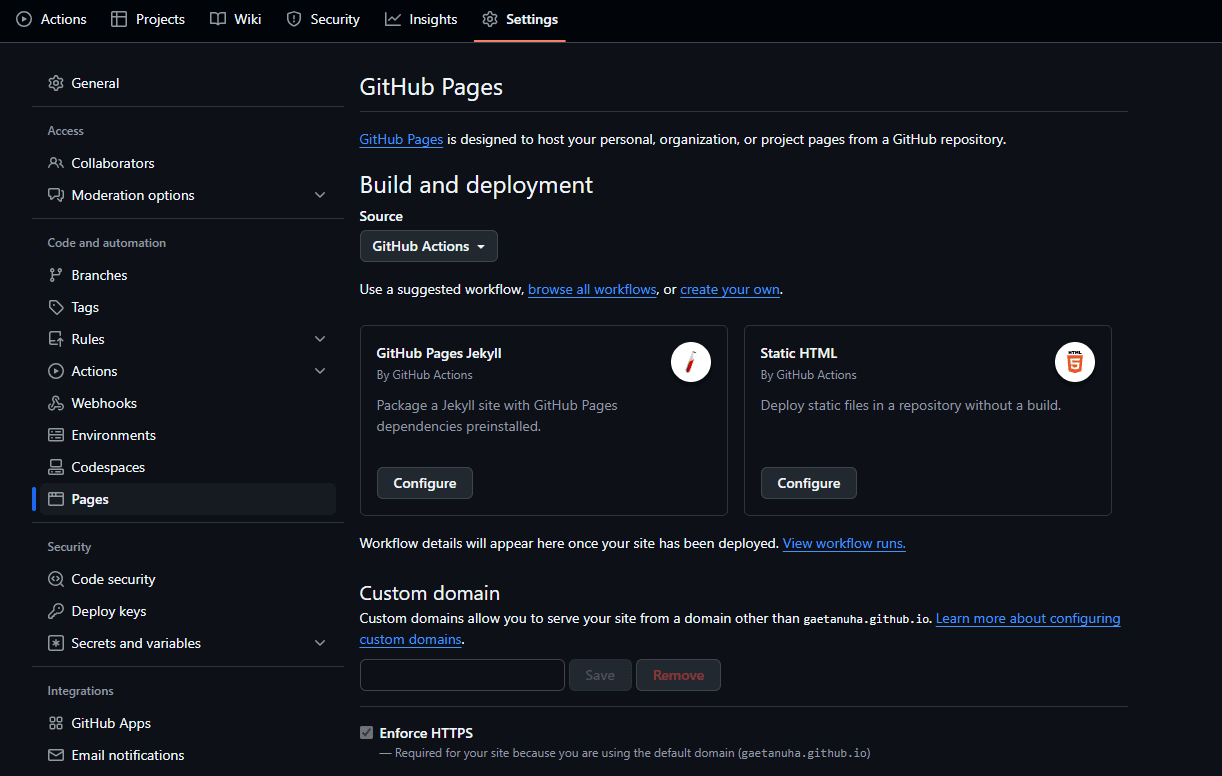
1. Access GitHub Pages Settings
- Go to your GitHub repository page.
- Click on the "Settings" tab located at the top right of the page.
- In the left menu, scroll down and click on "Pages" under the "Code and automation" section.
2. Configure the GitHub Pages Source
- Under "Build and deployment", you will see a section titled "Source".
- Select "GitHub Actions" as the source for deployment.
3. Choose the Static HTML Workflow
- Once you have selected GitHub Actions, you will see several preconfigured workflow options.
- Click on "Static HTML" to configure this workflow.
4. Configure the Workflow
- Access the Workflow File:
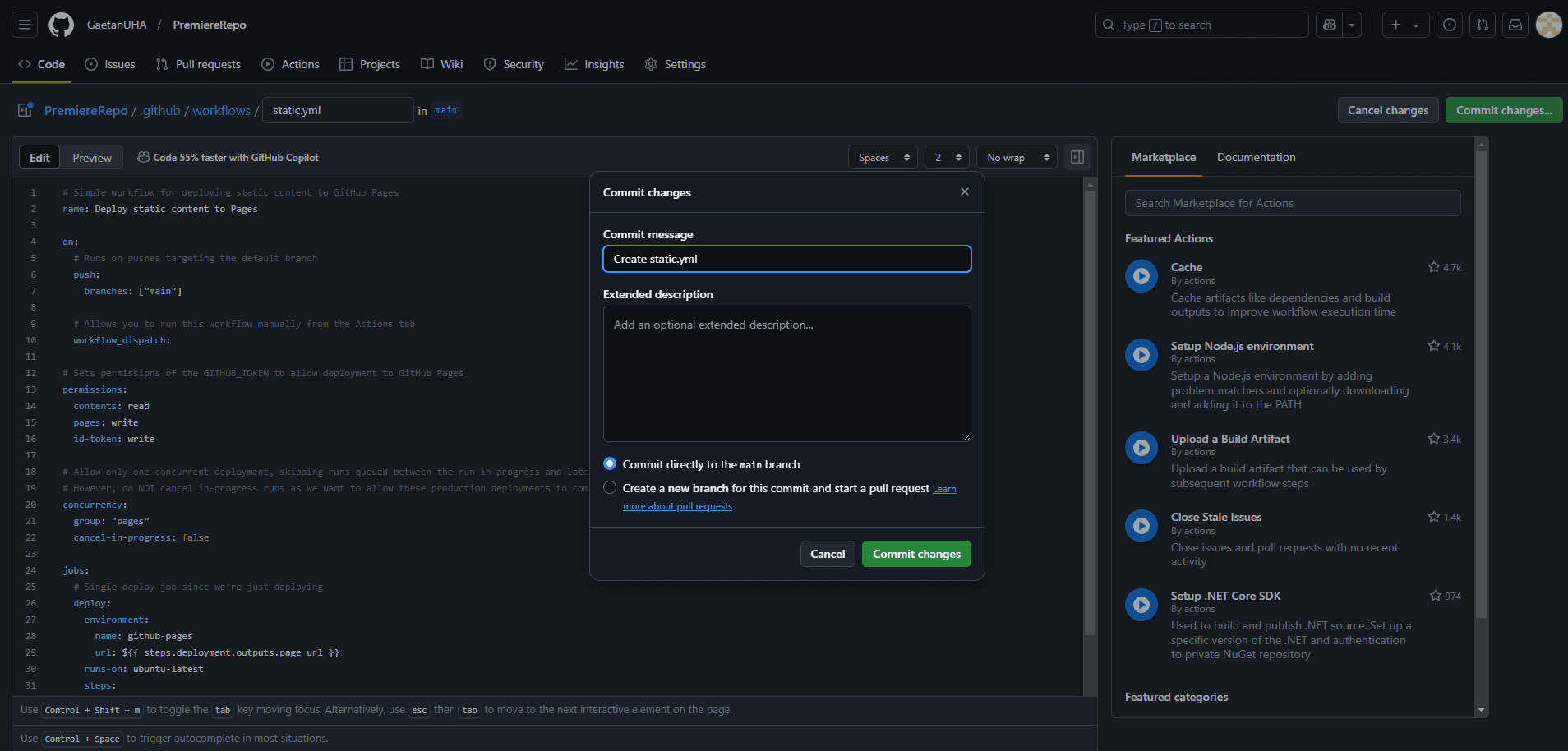
- GitHub will redirect you to a workflow file in your repository, located in
.github/workflows/. - This file is usually named
static.yml. - Check the Content:
- The file is pre-filled with the steps necessary to deploy a static site. You don't need to modify it for a basic deployment.
5. Save Changes
- Commit the File:
- Scroll to the top of the page if needed and click on "Commit changes".
- Add a simple commit message, such as "Configure static deployment".
- Click on "Commit changes" to save.
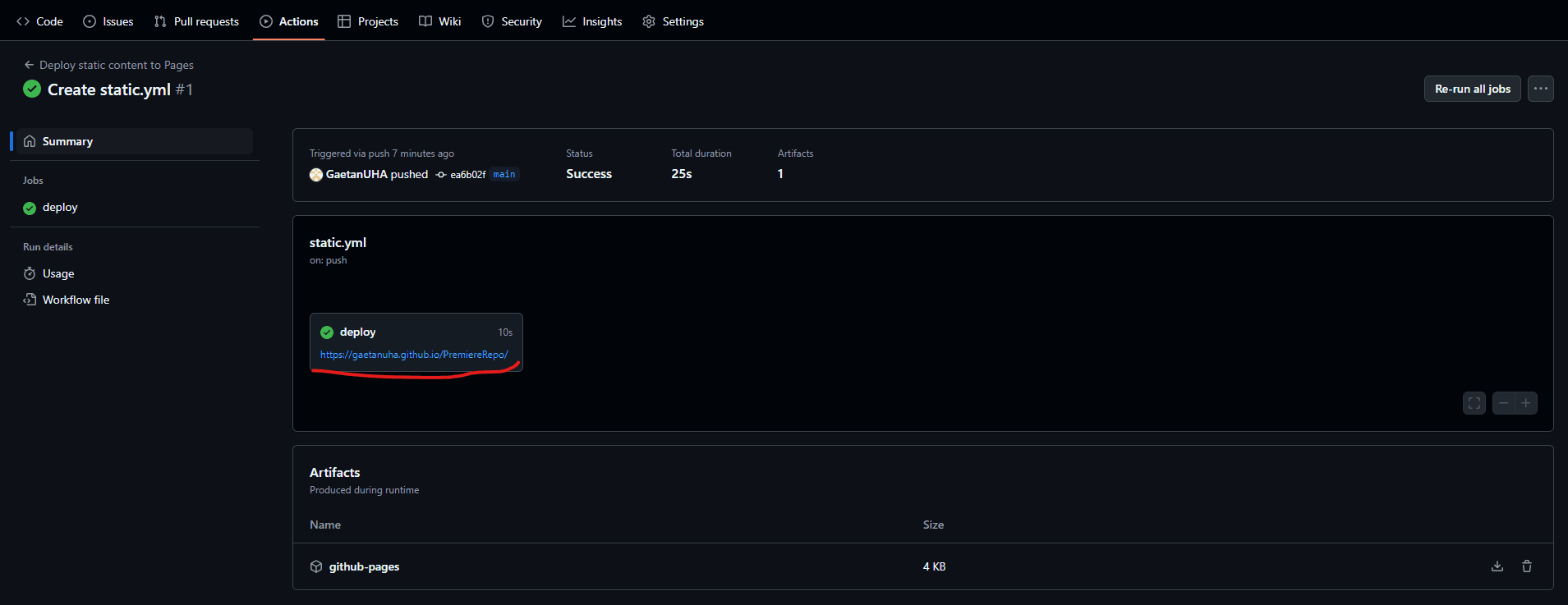
6. Verify Deployment
- Track Deployment:
- Once the file is committed, GitHub Actions will automatically launch the deployment.
- Go to the "Actions" tab of your repository to track the deployment status.
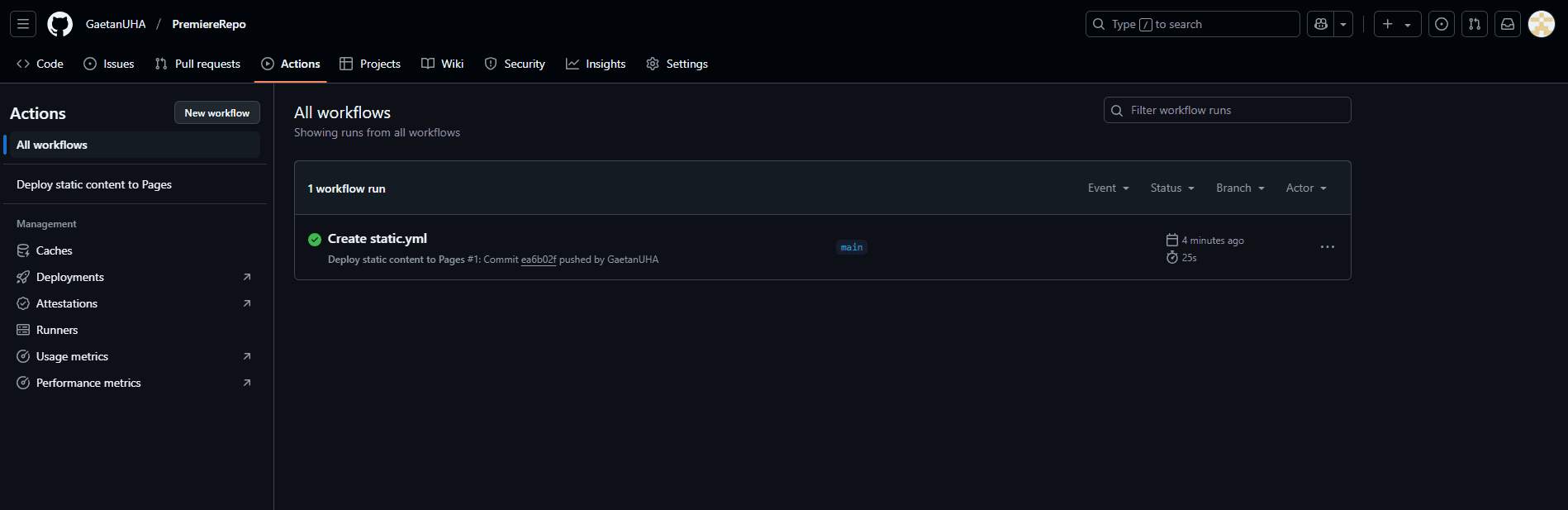
- Once complete, your site will be accessible via the URL provided in the GitHub Pages settings.
What is Gist?
Gist is a service provided by GitHub that allows you to easily share code snippets, notes, or any other type of text. It is a simplified version of GitHub, specially designed for quick and lightweight sharing of individual files or small groups of files. Here are some key points about Gist:
- Quick sharing: Gist allows you to create and share code snippets or notes in just a few clicks. You can choose to make your Gists public or secret. Public Gists are accessible to everyone, while secret Gists are only visible to those who have the link.
- Versioning: Like GitHub, Gist uses Git for version control. This means you can track changes made to your Gists over time, revert to previous versions, and collaborate with other users.
- Syntax Highlighting: Gist supports syntax highlighting for many programming languages, making code snippets more readable and easier to understand.
- Collaboration: You can invite other users to collaborate on your Gists. They can comment, modify, and improve your code snippets or notes.
- Integration with GitHub: Gist is integrated with GitHub, which means you can use your GitHub account to create and manage your Gists. You can also link your Gists to GitHub repositories for more centralized code management.
How to Use Gist?
- Create a Gist:
- Go to gist.github.com.
- Log in with your GitHub account.
- Click on "New gist" to create a new snippet. (Or default page)
- Add content:
- Give your file a name and add your code or text in the main text area.
- You can add multiple files to the same Gist by clicking on "Add file".
- Share your Gist:
- Once your Gist is created, you can share it by copying the unique URL generated.
- You can also embed your Gist in blogs or websites using the embedding option provided.
Gist is a practical tool for developers and technical writers who want to quickly share code snippets or ideas without having to create a complete GitHub repository. Whether to get feedback on a piece of code, share a solution to a problem, or simply save notes, Gist is a simple and effective solution.
Additional Resources
To deepen your knowledge of GitHub and Git, here are some additional resources in French that may be useful:
- Introduction to GitHub and Git:
- About GitHub and Git: A complete introduction to understand the basics of GitHub and Git, ideal for beginners.
- Online Git Training:
- Git Training by Grafikart: A video training in French that covers basic and advanced Git concepts.
- Automation with GitHub Actions:
- GitHub Actions Documentation: Discover how to automate your development workflows directly in your GitHub repositories.
- Deploying Static Sites:
- GitHub Pages Documentation: Learn how to host static websites directly from your GitHub repositories.
- Collaboration with Pull Requests:
- Pull Requests Documentation: Understand how to use pull requests to collaborate effectively on projects.
- Practical Guides on Git:
- GitHowTo: A site offering practical guides and tutorials to master Git and GitHub.